Sharing files, links, and documents (Resources)
Upload a file, share a link, or write a document in the Resources library, and organize them into folders — for troop paperwork, forms, and reference material.
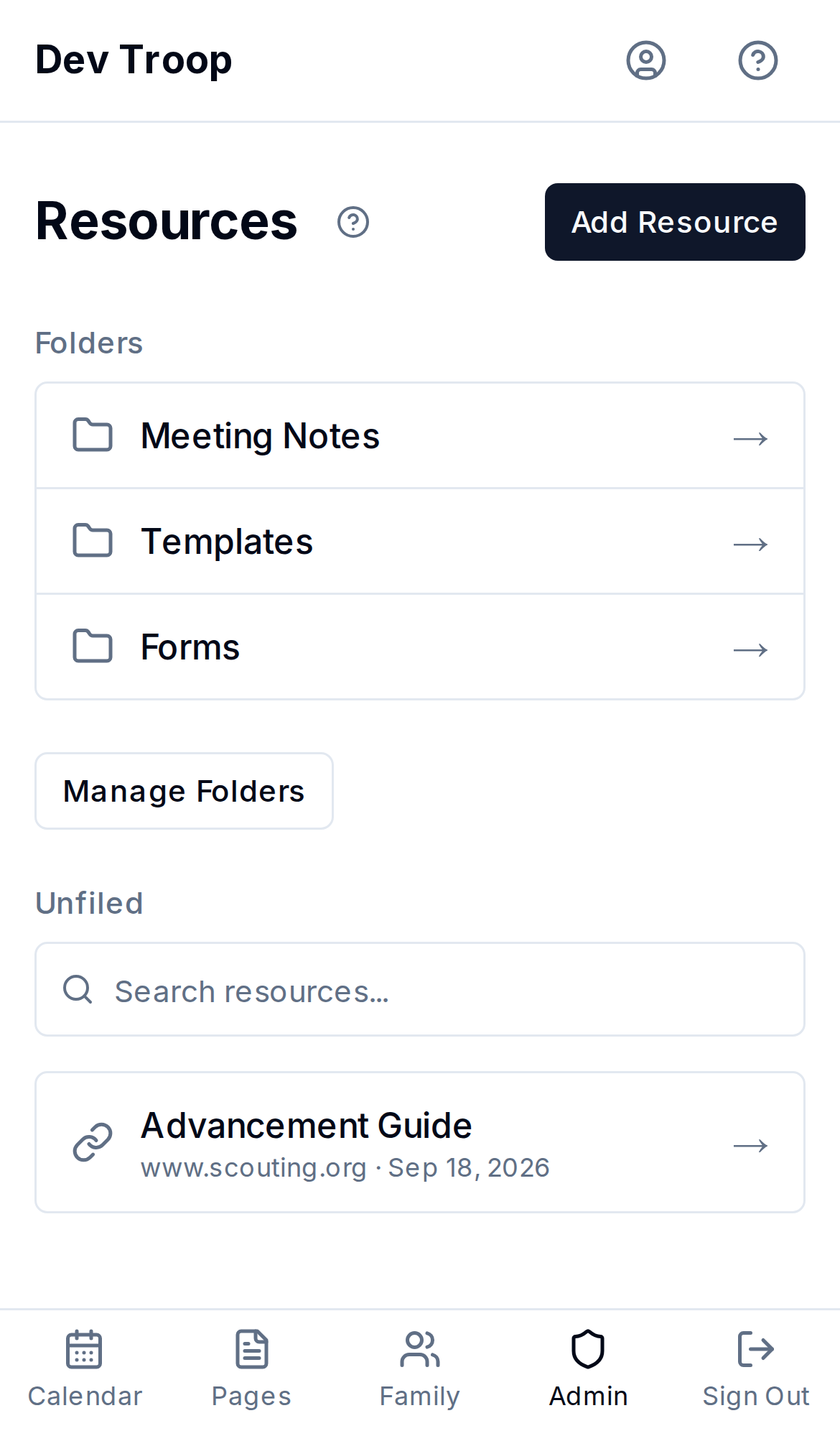
Admin > Resources is a shared library for anything committee members need to find later — permission slips, handbooks, a link to the council's registration site, a written policy. Every committee member and above can see everything in it; there's no per-resource visibility control.
Adding a resource
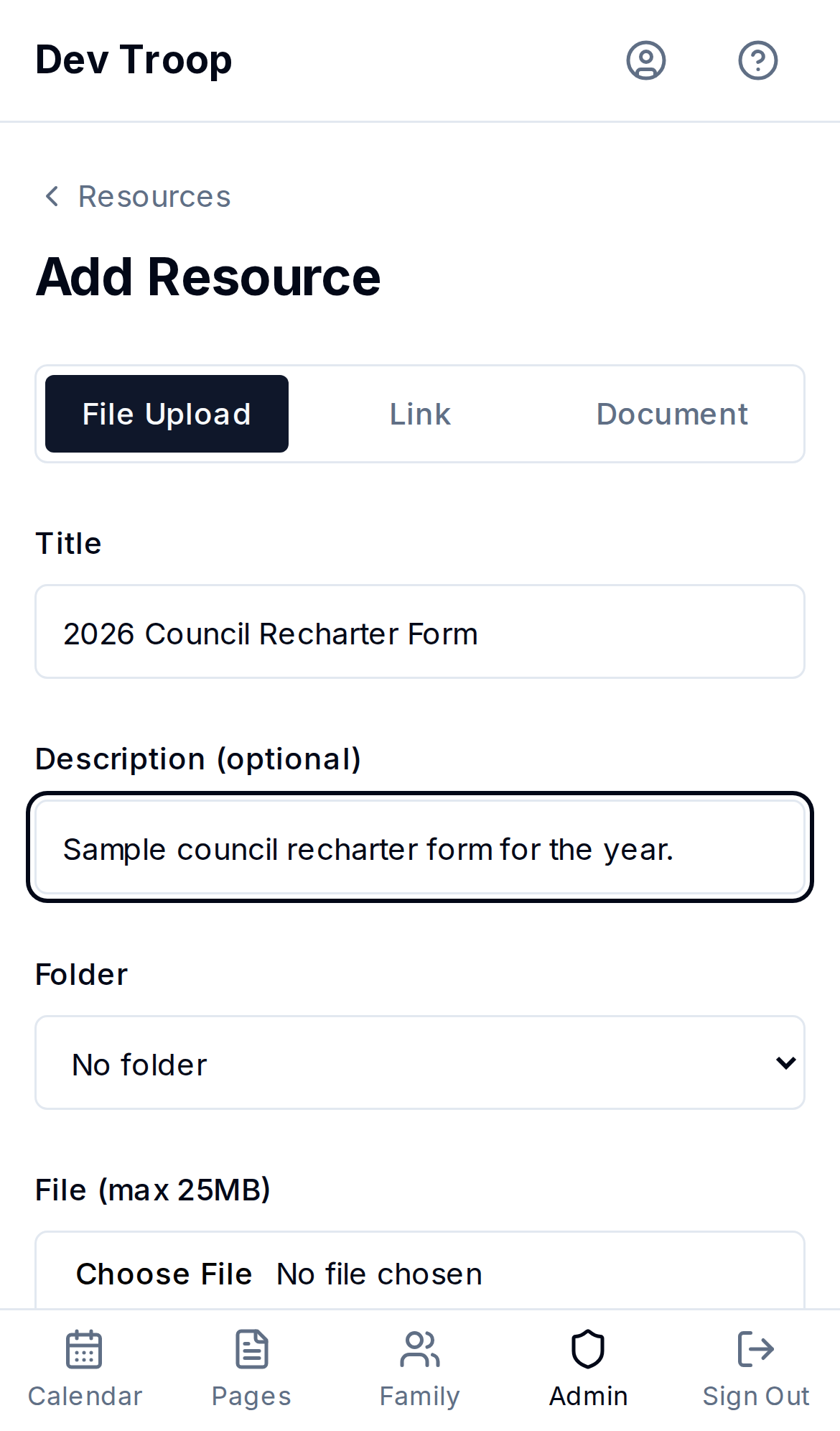
Click Add Resource, then pick a type:
- File Upload — attach a file (25MB max). Title is optional — it falls back to the file's own name.
- Link — paste a URL. Title is required.
- Document — write formatted text directly in MyTroop using the built-in rich text editor. Title is required.
All three also take an optional Description and a Folder (or leave it at No folder).
Editing a resource
Open it and change the title, description, or folder. A Document's content is editable the same way it was written. A File resource's file itself can't be swapped in place — delete it and upload a new one if the file changed.
Folders
Folders are a single flat list — no folders inside folders. Click Manage Folders (Leaders and Admins only) to add, rename, or delete one. Deleting a folder doesn't delete what's in it — those resources move back to the unfiled list at the root.
Who can do this
Every committee member and above can view all resources. Adding and editing a resource is available to anyone with committee access or higher; only Leaders and Admins can manage folders (create, rename, delete).